Chat Puan Setup: Adding the Scoring Screen to OBS and TikTok LIVE Studio
Every step from connecting the program to your stream to running your first vote.
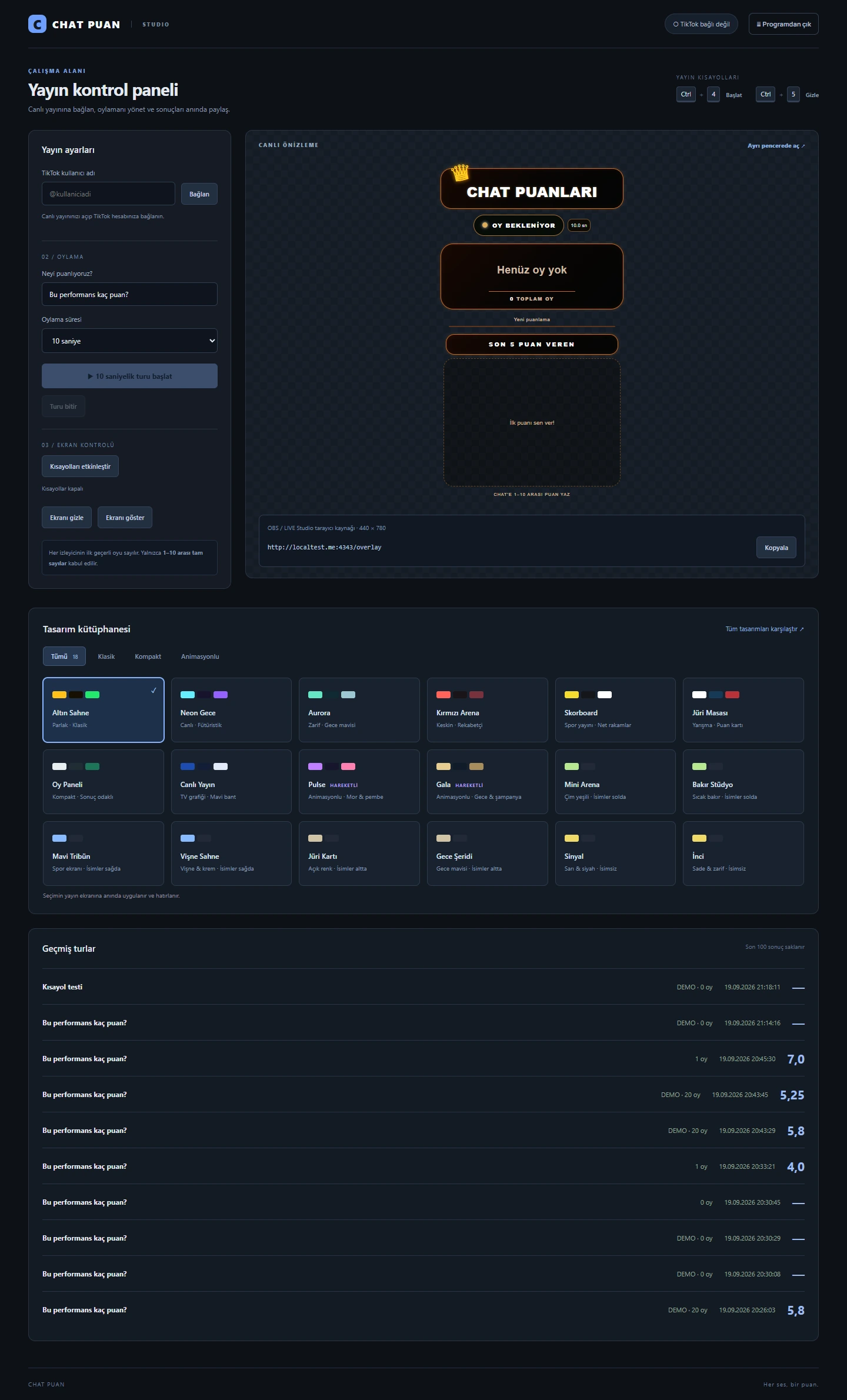
Chat Puan collects the 1–10 scores viewers type in the chat during your TikTok LIVE and shows the result on your stream. This guide walks you through connecting the program to your stream, adding the scoring screen to OBS or TikTok LIVE Studio, and starting your first vote.
Before you start
- A computer running Windows.
- A TikTok account that can go live.
- OBS or TikTok LIVE Studio if you stream from a computer.
Chat Puan is a desktop program that must stay open on your computer during the stream. Your stream has to be live for it to read the votes.
1. Connect to your stream
- Start your live stream on TikTok.
- Open Chat Puan and type your TikTok username into the field on the control panel.
- Press Connect. The panel shows when the connection is established.
2. Add the scoring screen to OBS
- Copy the stream screen address from the control panel.
- In OBS, click the + button under “Sources” and choose Browser.
- Paste the address into the URL field.
- Move the source to where you want it on the scene and resize it.
3. Add it to TikTok LIVE Studio
- Copy the stream screen address.
- In LIVE Studio, choose Link under “Add source”.
- Paste the address, then position and resize the source on the scene.
In a vertical stream, the bottom of the screen is covered by chat and gift animations. Placing the scoring screen in the upper or upper-middle area keeps the result easy to read.
4. Start your first vote
- On the control panel, type what is being rated, for example “How many points for this outfit?”.
- Start the vote and ask viewers to type a number from 1 to 10 in the chat.
- Valid votes received during the voting period are collected. Only each viewer’s first valid vote counts.
- The result appears on the stream screen.
Choosing a theme
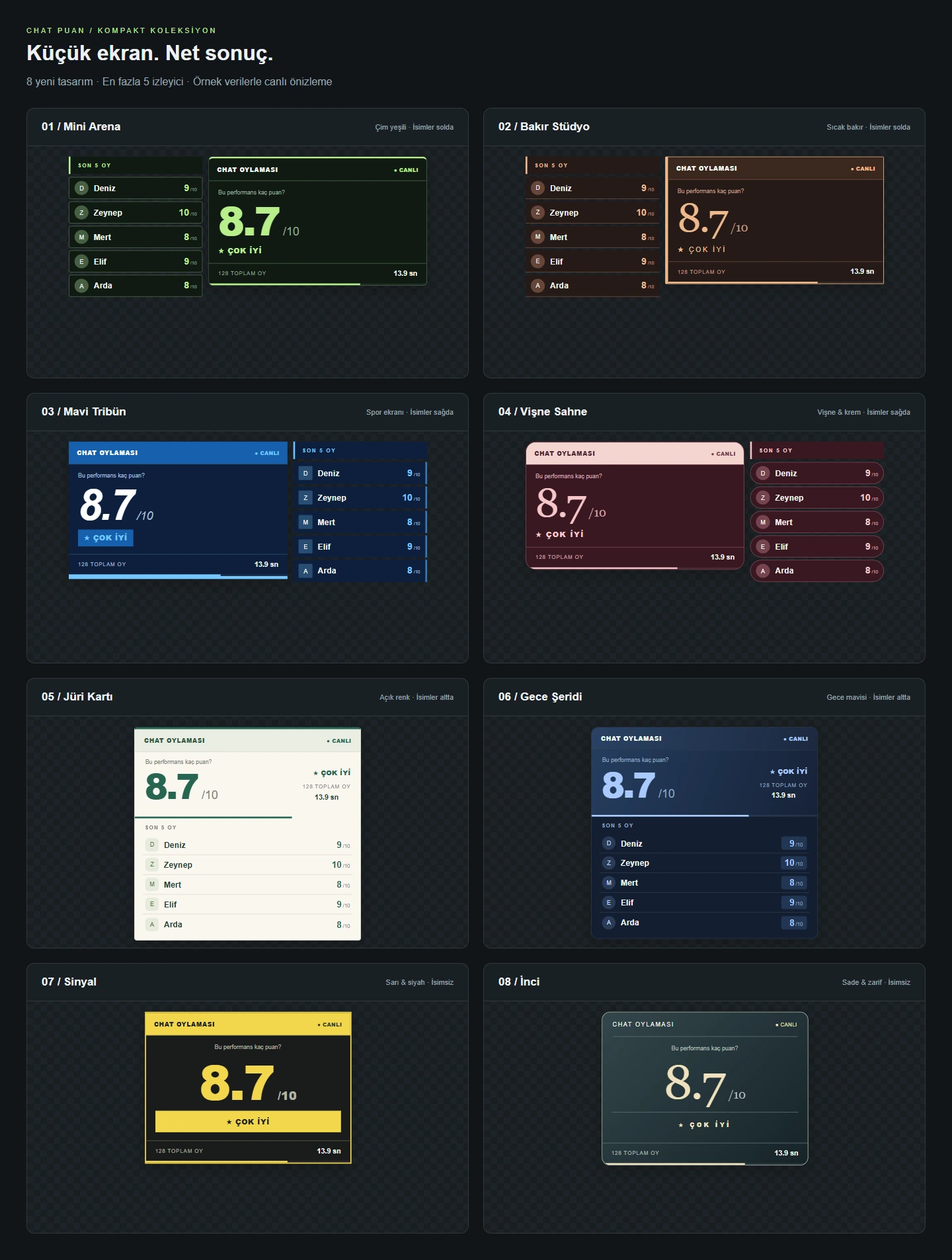
Chat Puan includes scoring screens in different colours and layouts. You can choose the one that matches your stream’s background and colours from the control panel. We recommend checking how it looks in the preview before going live.
Common problems
- The screen does not appear: remove the source and add it again, and make sure the program is open.
- Votes are not coming in: check that the stream is live and the connection is established. Remind viewers to type only a number.
- The screen freezes: refresh the source in your streaming software. Closing other unnecessary browser sources also helps.
Frequently asked questions
Does Chat Puan work when streaming from a phone?
The program runs on a Windows computer and the scoring screen is added to streaming software on that computer, so the stream needs to run through OBS or TikTok LIVE Studio.
Can a viewer vote more than once?
No. In each vote, only the viewer’s first valid vote counts.
What if I get stuck during setup after buying?
Message us on Instagram. Just include your order details and a short description of the problem.